Getting started
Save, find and manage several signatures
In short
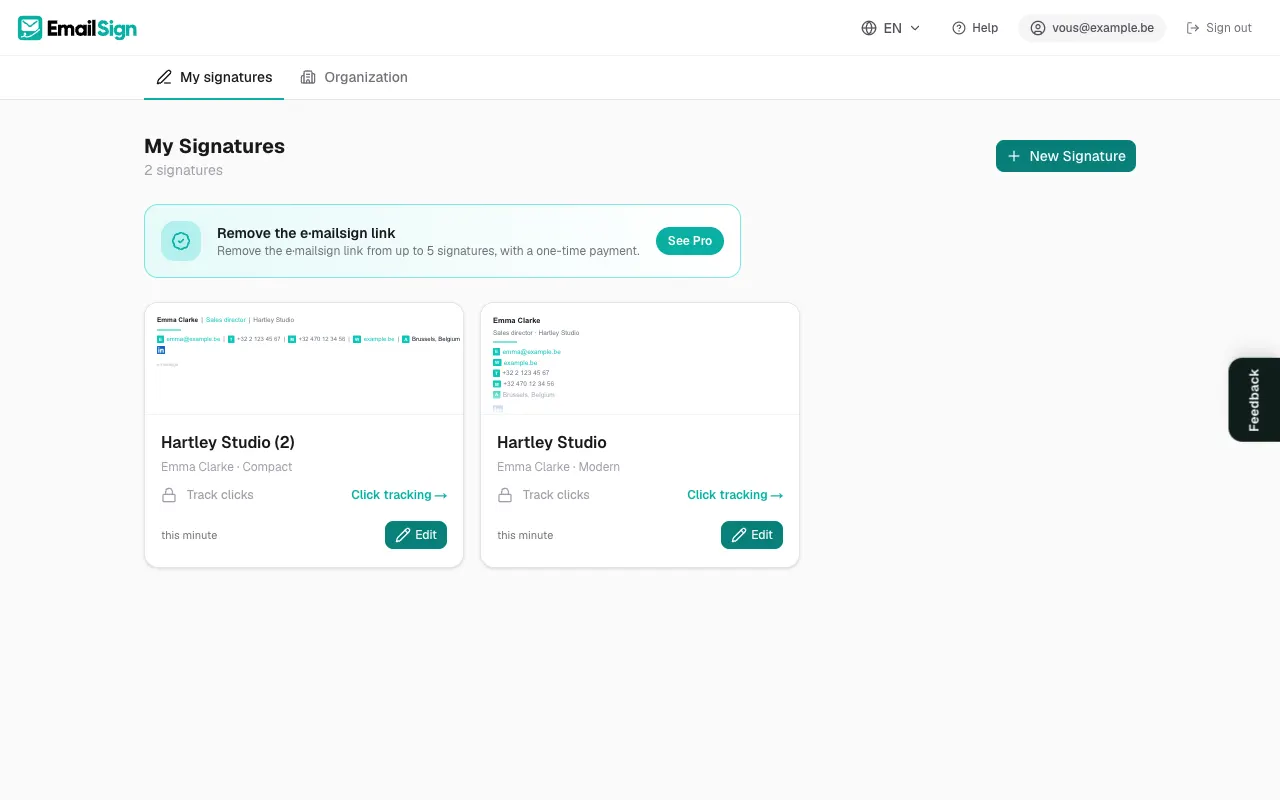
In the editor, every change is saved automatically (the indicator shows Saving, then Saved). All your signatures are in My Signatures: you can create as many as you like, and edit, duplicate, rename or delete them.
Checked on 19 November 2026
Automatic saving
There is no button to look for: the editor saves as you type. At the top, Saved confirms everything is safe. If Not saved shows, check your internet connection: the next change starts saving again.
Create, duplicate, rename, delete
- Open My Signatures (you land there after signing in).
- Click New Signature to create one, for example a short version for replies.
- To start from an existing signature, hover its card and click Duplicate: a "(copy)" appears.
- To rename it, click its name (or Rename signature in the editor). The name only helps you find it, it does not appear in the signature.
- To delete it, click Delete and confirm. Careful, this cannot be undone.
Was this article helpful?
Read next
Did not find your answer?
Email us, in English, French or Dutch. Andy, the founder, answers himself.