Organization
Import a CSV file (Microsoft 365 included) and export the list
In short
In the Members tab, click Import a file and drop a CSV, one row per person. Only the email column is required; first name, last name, job title, department, phone, mobile and language are used when present. The Microsoft 365 or Entra ID user export can be dropped as is.
Checked on 19 November 2026
- Open Organization, Members tab, and click Import a file.
- No file yet? Click Download a template file and fill it in Excel or Google Sheets.
- Click Choose a CSV file or drop it in the window (500 rows at most).
- Check the preview: each row is Added, Updated or skipped with its reason (invalid address, outside the domains, duplicate in the file).
- Click Import: the result shows (added, updated, skipped).
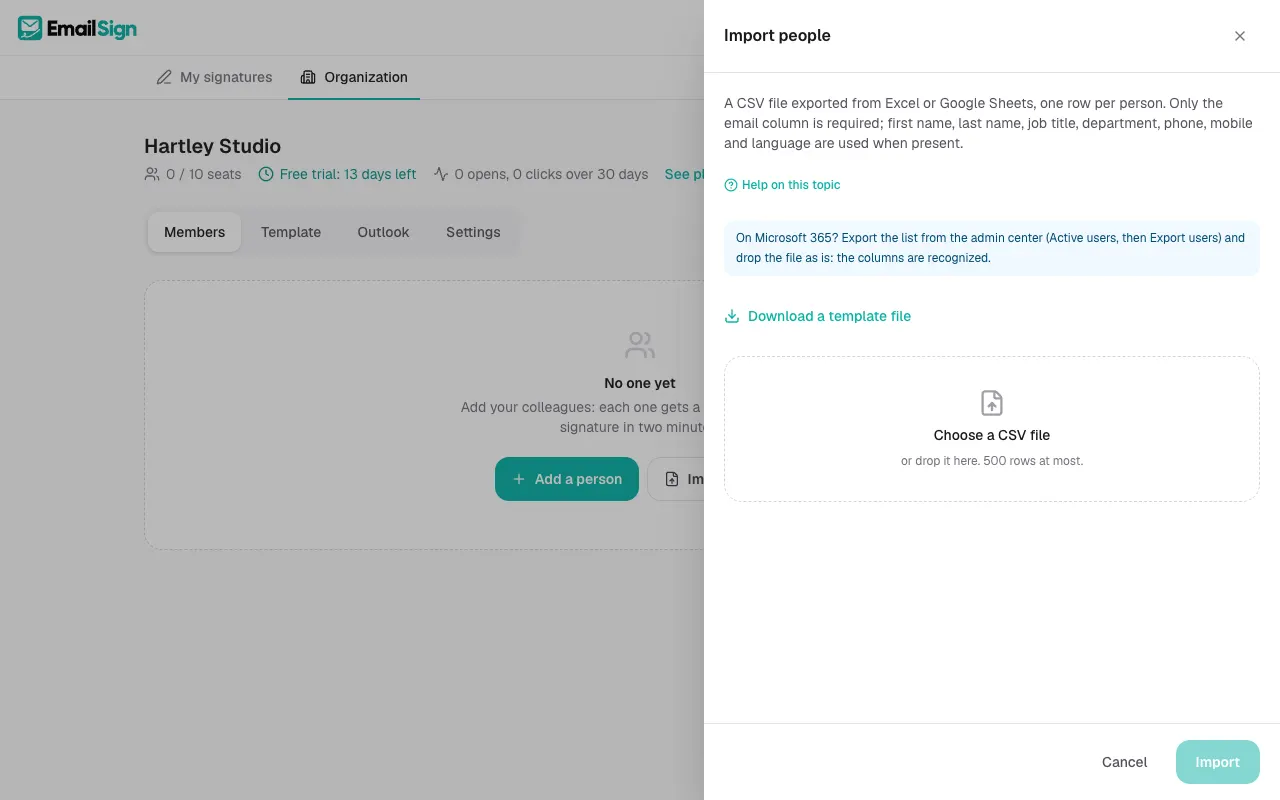
From Microsoft 365 or Entra ID
In the Microsoft 365 admin center, open Active users, then Export users. In Entra ID, Download users. Drop the file as is: the columns (user principal name, first name, last name, job title, department, phones) are recognized in English, French and Dutch.
A person already in the list (same email) is updated, not duplicated. If there are not enough free seats, the import tells you before importing: archive people or move to a bigger plan.
Export
The Export button downloads the member list as a CSV, to open in Excel or keep as a backup.
Was this article helpful?
Read next
Did not find your answer?
Email us, in English, French or Dutch. Andy, the founder, answers himself.