Install
Copy the signature: formatted, HTML code or file
In short
Most email apps (Gmail, Outlook, Apple Mail) want the formatted signature: Copy Signature, then Ctrl+V (Cmd+V on Mac). Infomaniak, Proton Mail and Thunderbird want the code: Copy HTML. The .html file is for the file method of classic Outlook and Apple Mail.
Checked on 19 November 2026
- In the editor, open the Install tab.
- Under Your email app, choose yours: Gmail, Outlook, Classic Outlook, Outlook for Mac, Apple Mail, iPhone, Infomaniak or Proton Mail.
- Click the copy button shown: EmailSign picks the right format for that app.
- Click Open to go to the email app when possible, then follow the steps shown.
- Send yourself an email, then click It is installed.
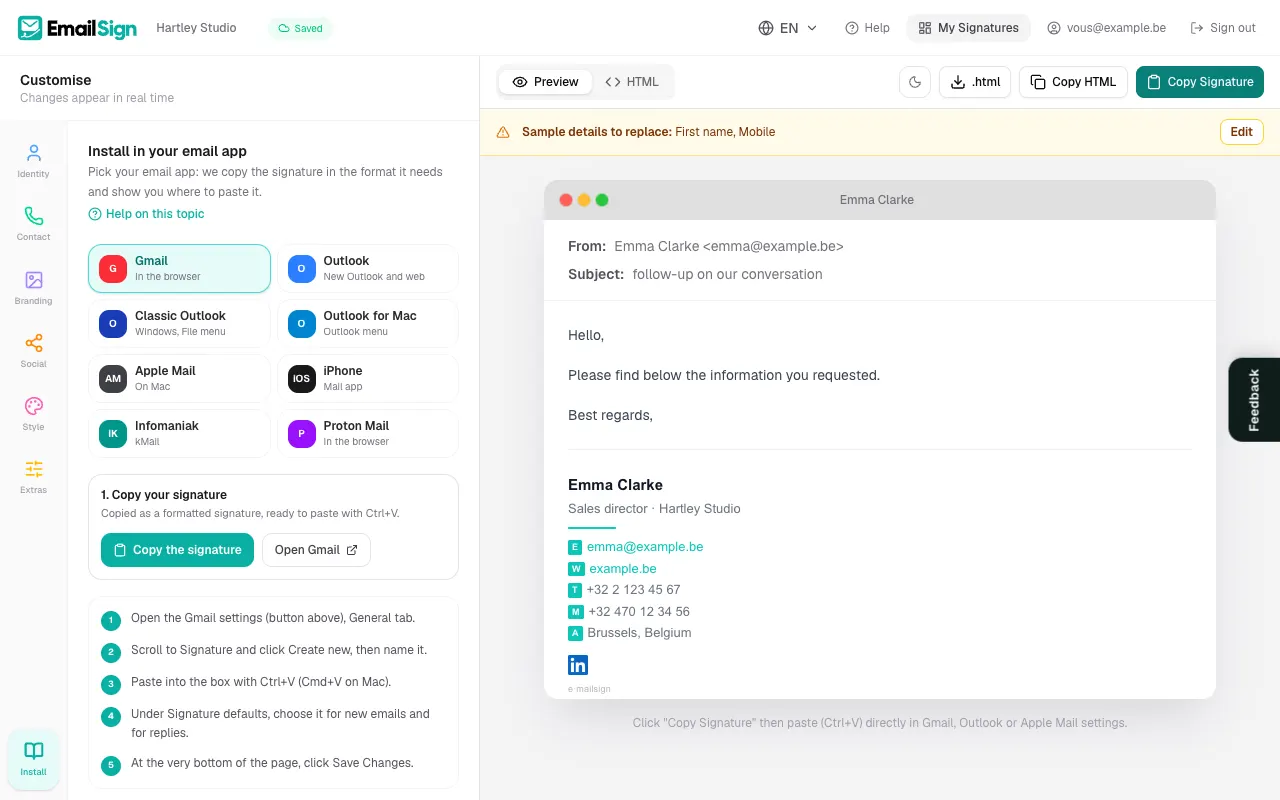
The three formats
- Copy Signature: the signature as you see it, to paste directly. For Gmail, Outlook, Apple Mail and the iPhone.
- Copy HTML: the source code, to paste into an HTML field. For Infomaniak, Proton Mail, Thunderbird and tools with an HTML editor.
- .html: a file to import. For the "Insert file" method of classic Outlook, which keeps the styles better, and the file method of Apple Mail.
Copying and downloading need a free account. The buttons are also under the preview, whichever tab is open.
Was this article helpful?
Read next
Did not find your answer?
Email us, in English, French or Dutch. Andy, the founder, answers himself.